download app
How to Turn an Old Android Phone Into a Smart Desk Clock
Focus Dock Team
Focus Dock Core Team · Android Standby Expert
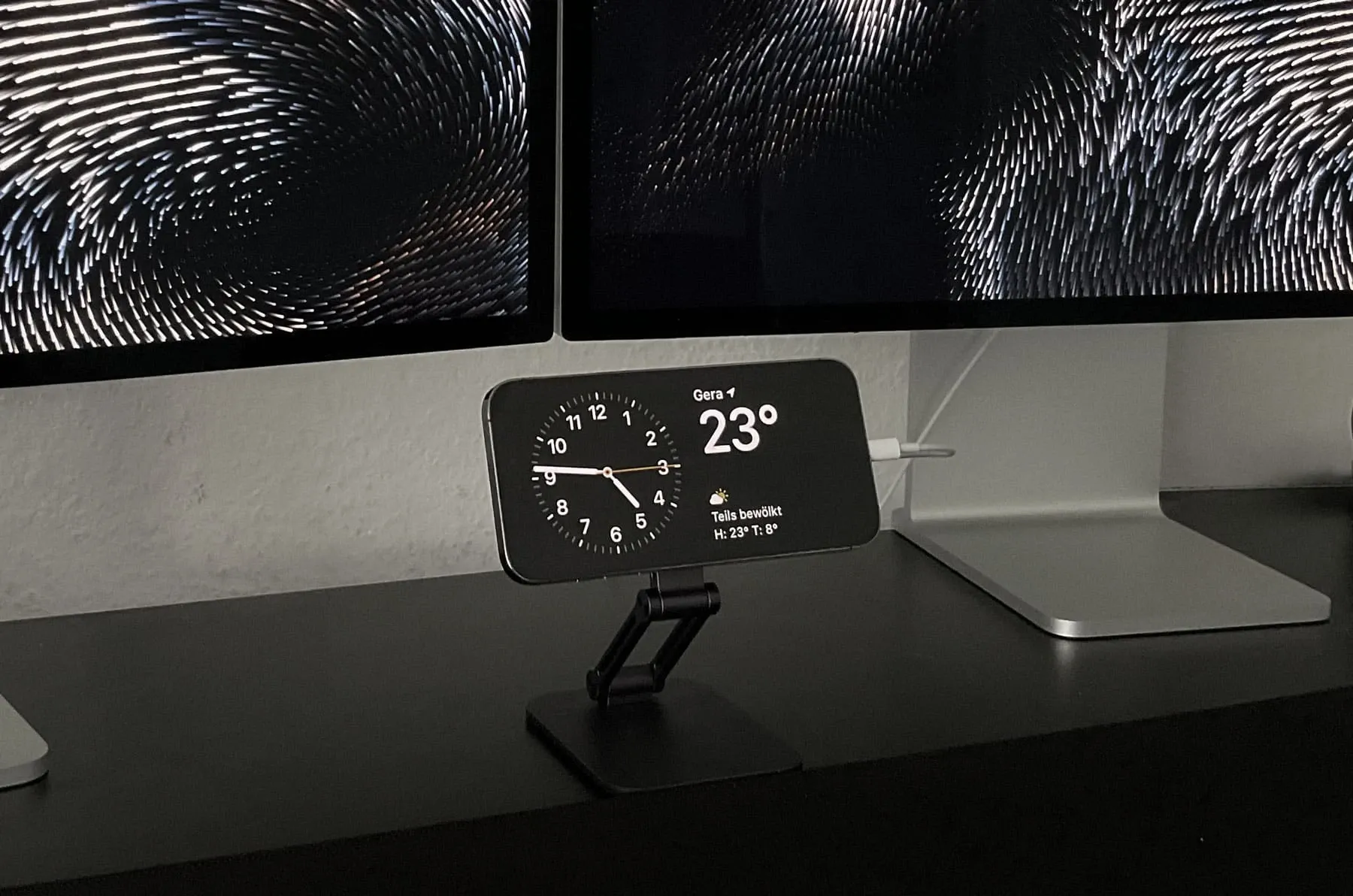
Most households have an old Android smartphone sitting forgotten in a desk drawer. While it may no longer have the battery endurance or processing speed needed for daily mobile gaming and multitasking, its high-resolution display and Wi-Fi connectivity make it a perfect candidate for a dedicated smart desk clock.
Repurposing a spare phone eliminates electronic waste and gives you a dedicated, customizable ambient station for your desk, kitchen counter, or nightstand.
Here is a step-by-step guide to converting any device running Android 7.0 Nougat or newer into a modern standby desk clock using Focus Dock.
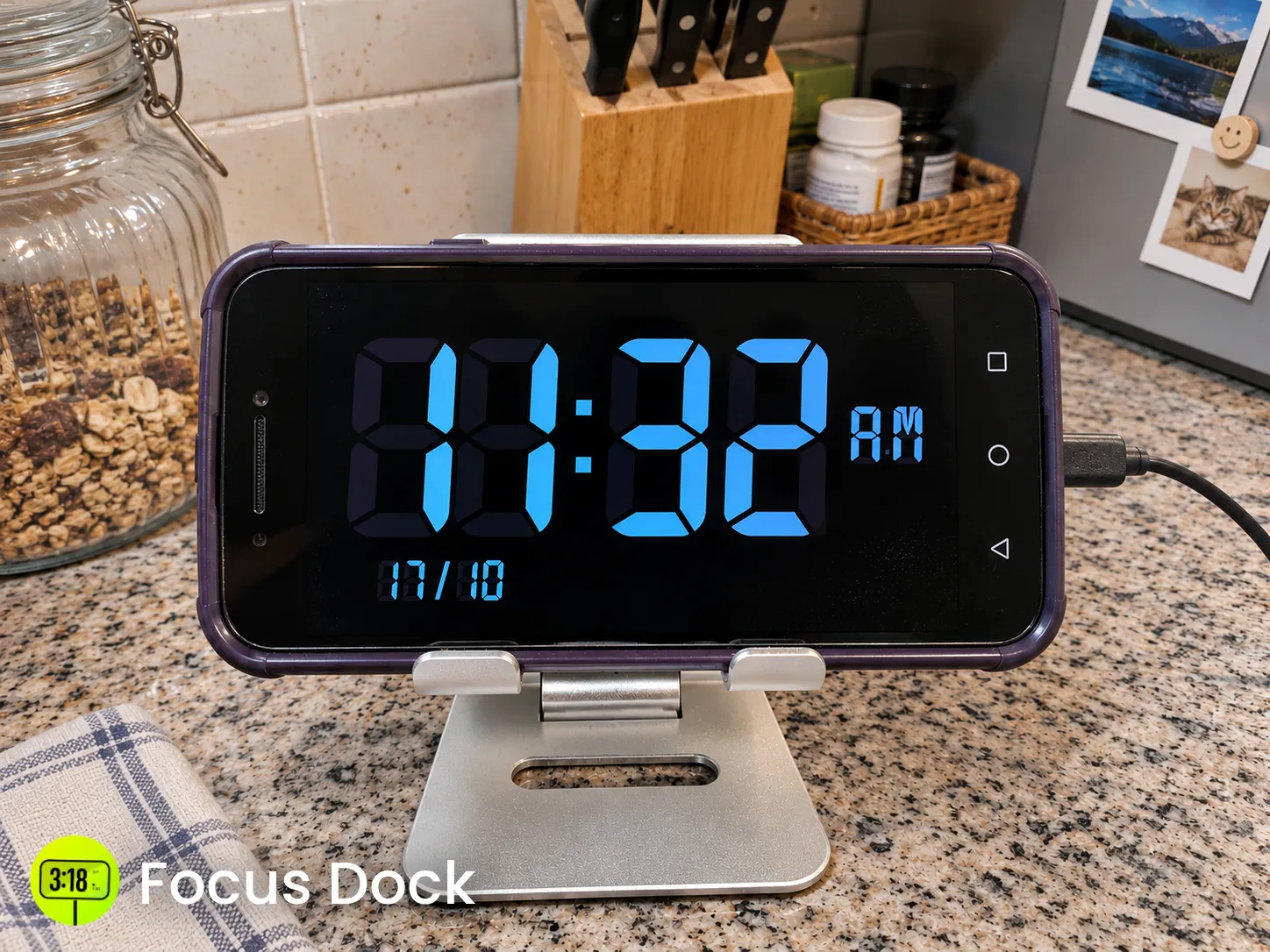
Hardware & Operating System Requirements
Focus Dock is engineered for lightweight efficiency, making it compatible with older hardware:
- Android Version: Android 7.0 Nougat (API 24) or newer. Works on virtually all flagships and budget devices released from 2016 onwards (Samsung Galaxy S7/S8/S9/S10, Google Pixel 1–4, OnePlus 3–7, Moto G series, Xiaomi Redmi, and many more).
- Physical Stand: A stable desktop stand or wireless Qi charging dock holding the phone in landscape orientation.
- Power Cable & Adapter: A reliable USB-C or micro-USB cable with a 5W–10W charging brick.
- Focus Dock App: Free download from the Google Play Store (lightweight ~15 MB download, zero account creation required).
Step-by-Step Conversion Guide
Step 1: Clean Reset the Old Phone
If the device still contains old personal accounts, photos, and background apps, start with a clean slate:
- Open Android Settings > System > Reset options.
- Select Erase all data (factory reset).
- During initial setup, connect to your home Wi-Fi network and sign in with a secondary or primary Google account to access the Play Store.
Step 2: Install Focus Dock
- Open the Google Play Store, search for Focus Dock, and install.
- Launch the app and grant the necessary permissions (Do Not Disturb access for Focus Mode, Notification access for Spotify/media control, and Wake Lock to keep the screen active).
Step 3: Configure Auto-Launch on Power
- Open Focus Dock's Settings.
- Tap App Auto-Launch and enable the toggle.
- Now, whenever the phone is placed on a charging stand or plugged into power in landscape mode, Focus Dock boots immediately.
Step 4: Turn On Burn-in Protection
- In Settings > Screen Settings, toggle on Burn-in Protection.
- Set the grid opacity slider to 30%–50%. This activates the microscopic alternating chessboard grid that flips active sub-pixels every minute.
- Toggle off Show status bar and Show navigation bar to hide system UI icons.
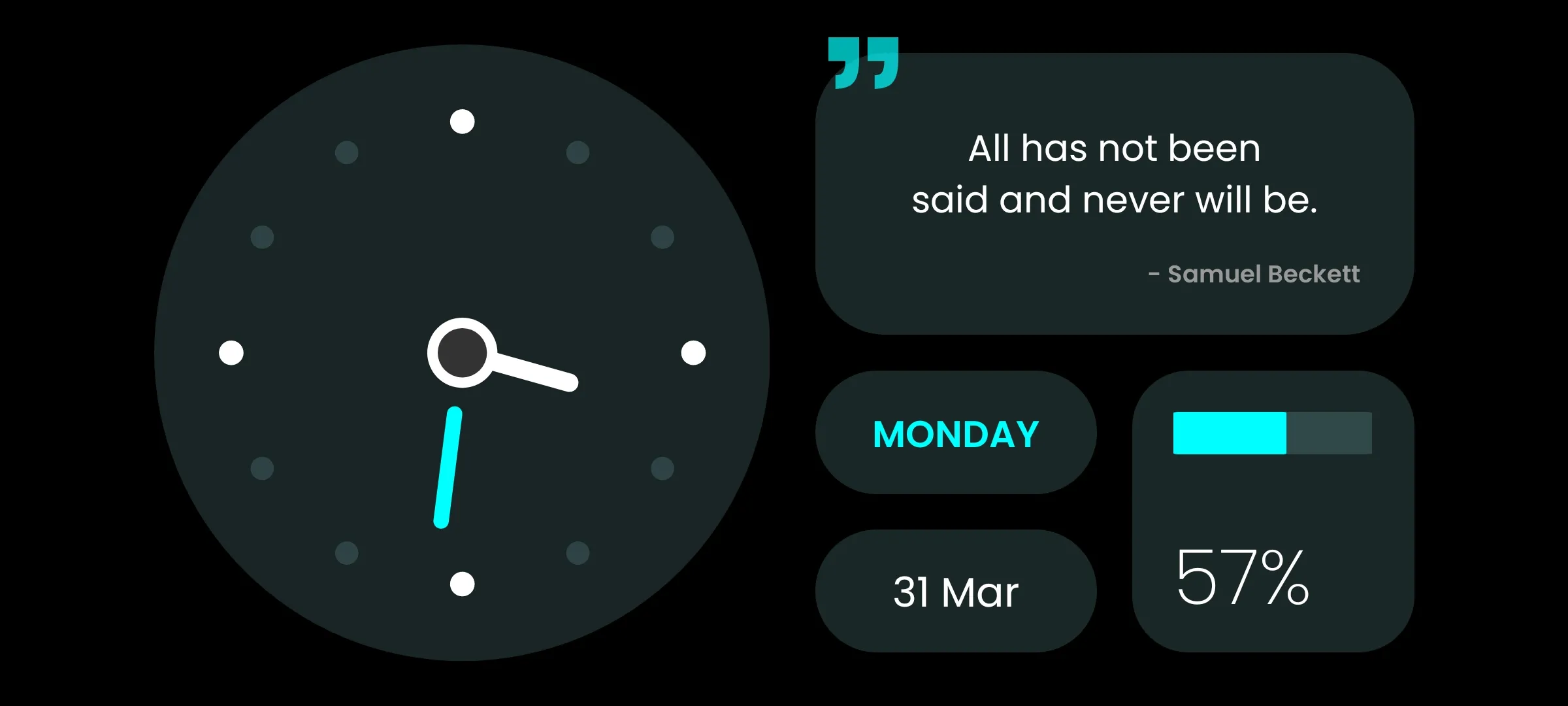
3 Dedicated Use-Case Environments
1. Kitchen Counter Smart Station
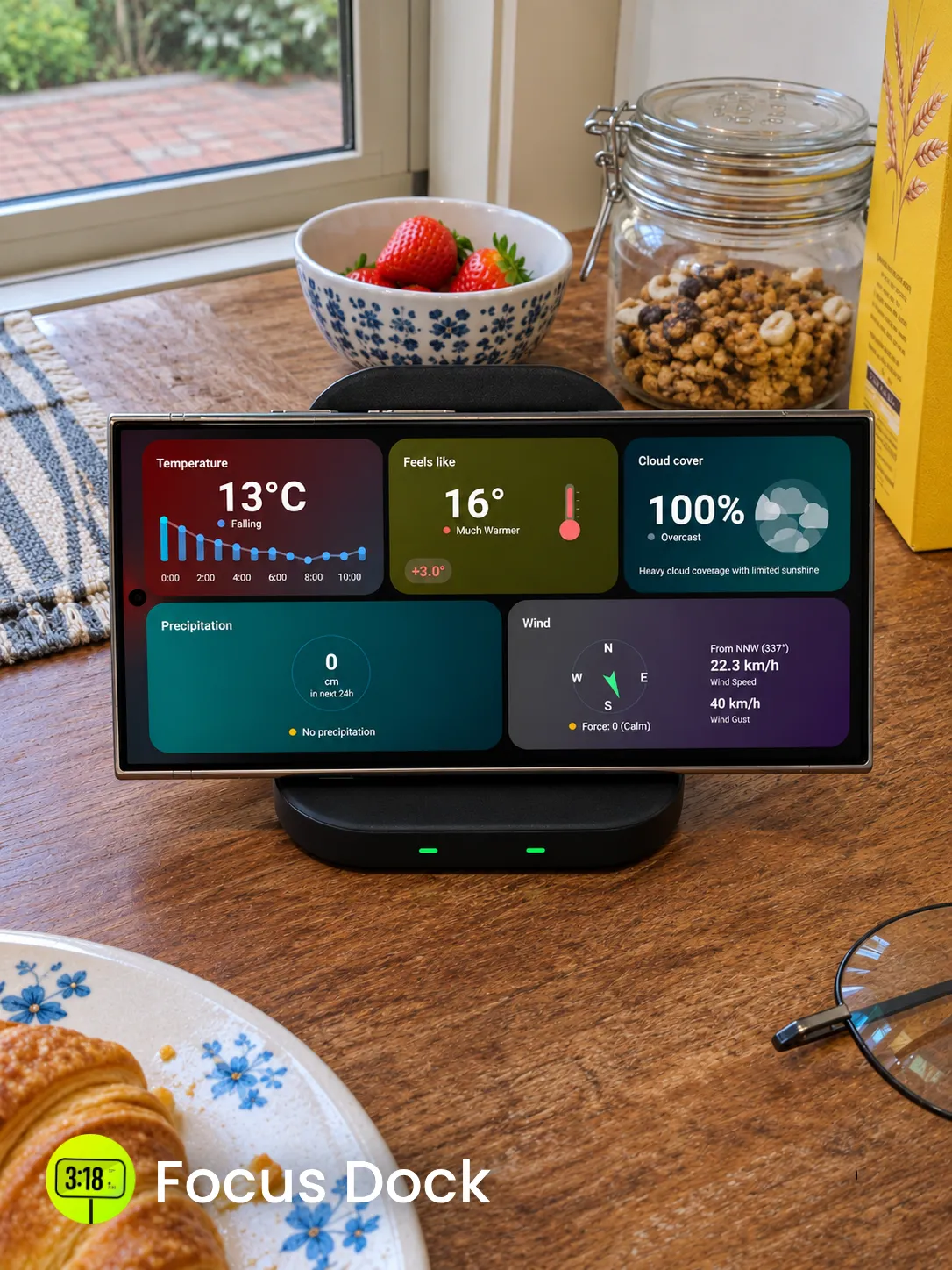
Mount the phone horizontally on a magnetic counter stand. Use the Segment Clock or Weather Cards theme to check daily forecasts, temperature, and cooking timers at a glance while keeping hands free.
2. Workspace Focus Companion
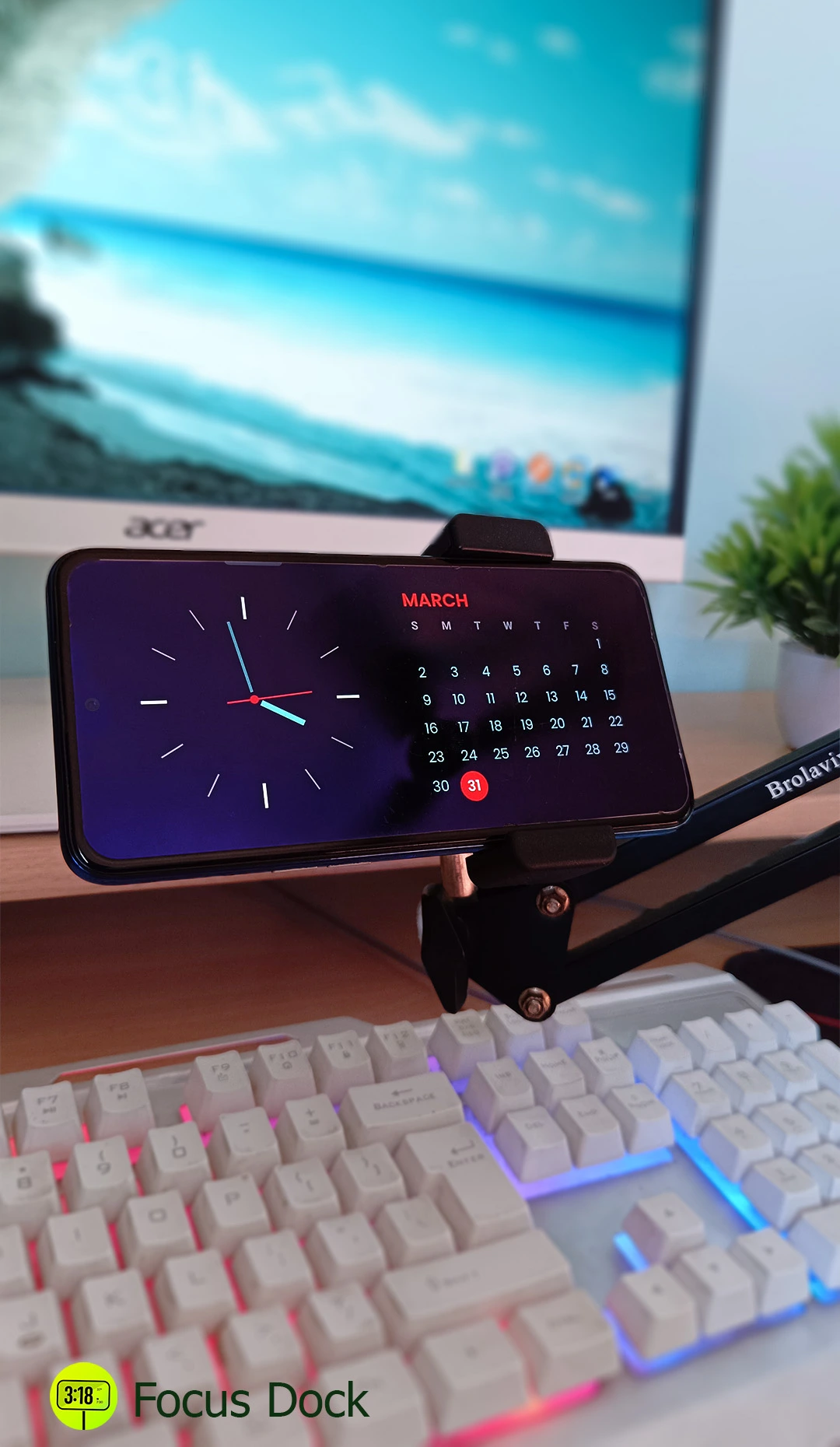
Place the phone beside your computer monitor. Use the Pomodoro or Sand Clock timer to structure study sessions, while the Music Player theme displays real-time Spotify album artwork without taking up window space on your primary monitor.
3. Bedside Ambient Nightstand Dock
Place the device on your nightstand. Activate Focus Dock's Bedside Red Night Mode with ultra-low dimming to preserve sleep hygiene and prevent blue-light melatonin suppression.
Battery Health Tips for 24/7 Plugged-In Devices
Leaving a smartphone continuously plugged into a charger can put sustained stress on an aged lithium-ion battery. Follow these practical maintenance recommendations:
- Cap Charge at 80%: If your old phone has a built-in battery protection setting (common on Samsung One UI, Sony, and Android 12+), cap the maximum charge at 80% or 85%.
- Use a Smart Plug Timer: Plug your charger into an inexpensive smart plug scheduled to charge for 2 hours and rest for 4 hours, cycling the battery naturally.
- Moderate Brightness: Keep screen brightness around 30% to 40%. This prevents thermal buildup and reduces current draw.
- Select Lightweight Themes: For devices with older quad-core processors, choose streamlined themes like Minimal Bold, Minimal Thin, or Segment Clock for smooth 60fps rendering.
Zero Cloud Tracking: Focus Dock operates 100% locally on your old phone without sending data to external servers, ensuring complete privacy in your home or workspace.
Focus Dock is 100% ad-free and respects your battery & display health.