download app
Best Free Android Desk Clock Apps in 2026 (Always-On Display)
Focus Dock Team
Focus Dock Core Team · Android Standby Expert
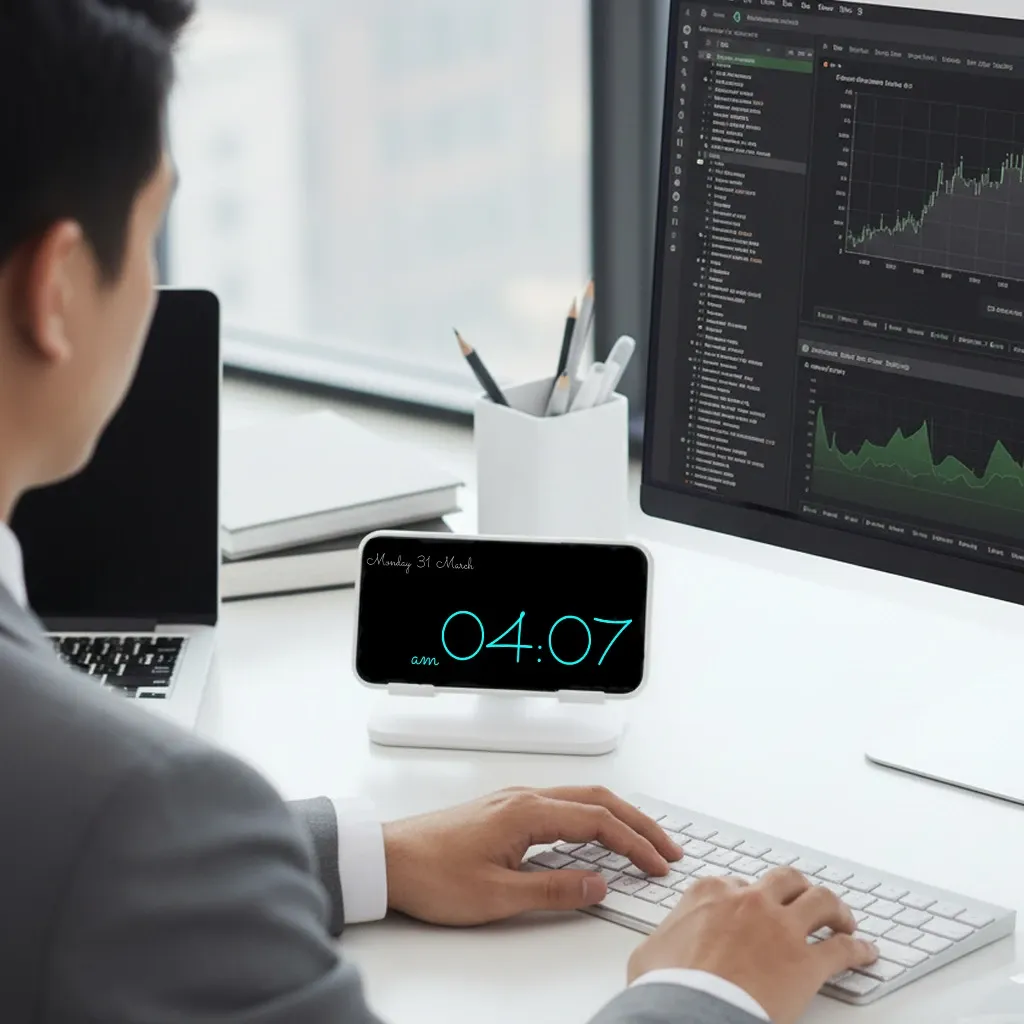
Your Android phone is probably sitting face-down or locked on your desk, doing nothing useful while you work or study. A dedicated desk clock app turns that idle screen into an ambient, high-utility always-on dashboard — displaying the time, live weather, focus timers, calendar events, and music playback without requiring you to constantly unlock your phone.
In 2026, the standard for Android desk clocks has evolved far beyond simple digital numbers on a black screen. Today's best apps deliver curated aesthetics, burn-in protection for OLED displays, and distraction-free productivity workflows.
Here is an in-depth breakdown of what makes a great desk clock app in 2026, how the top options compare, and why Focus Dock is the leading choice for professionals, students, and desk setup enthusiasts.
What Separates an Elite Desk Clock App From a Basic Timer?
Before choosing an app, it is important to understand the hardware and usability challenges unique to continuous, always-on smartphone docking:
1. Active OLED/AMOLED Burn-In Protection
Modern smartphones feature vibrant AMOLED screens where static pixels will degrade unevenly if left displaying fixed numbers for hours. An elite desk clock must include active pixel shifting or alternating grid inversion to preserve display longevity.
2. Auto-Launch on Charging & Docking
A true desk clock should behave like a dedicated appliance. When you place your phone on a wireless Qi charging dock or plug in a USB-C cable in landscape orientation, the clock should activate immediately without manual tapping.
3. Deep Productivity Integration
A desk clock shouldn't just count seconds. It should function as a passive productivity hub featuring Pomodoro timers, habit tracking, live Spotify/Apple Music media controls, and weather forecasts.
4. Zero Data Harvesting & 100% Offline Security
Many free clock apps on the Play Store are loaded with invasive ad networks, location trackers, and unnecessary account requirements. Your desk clock should respect your privacy, work completely offline, and require zero logins.
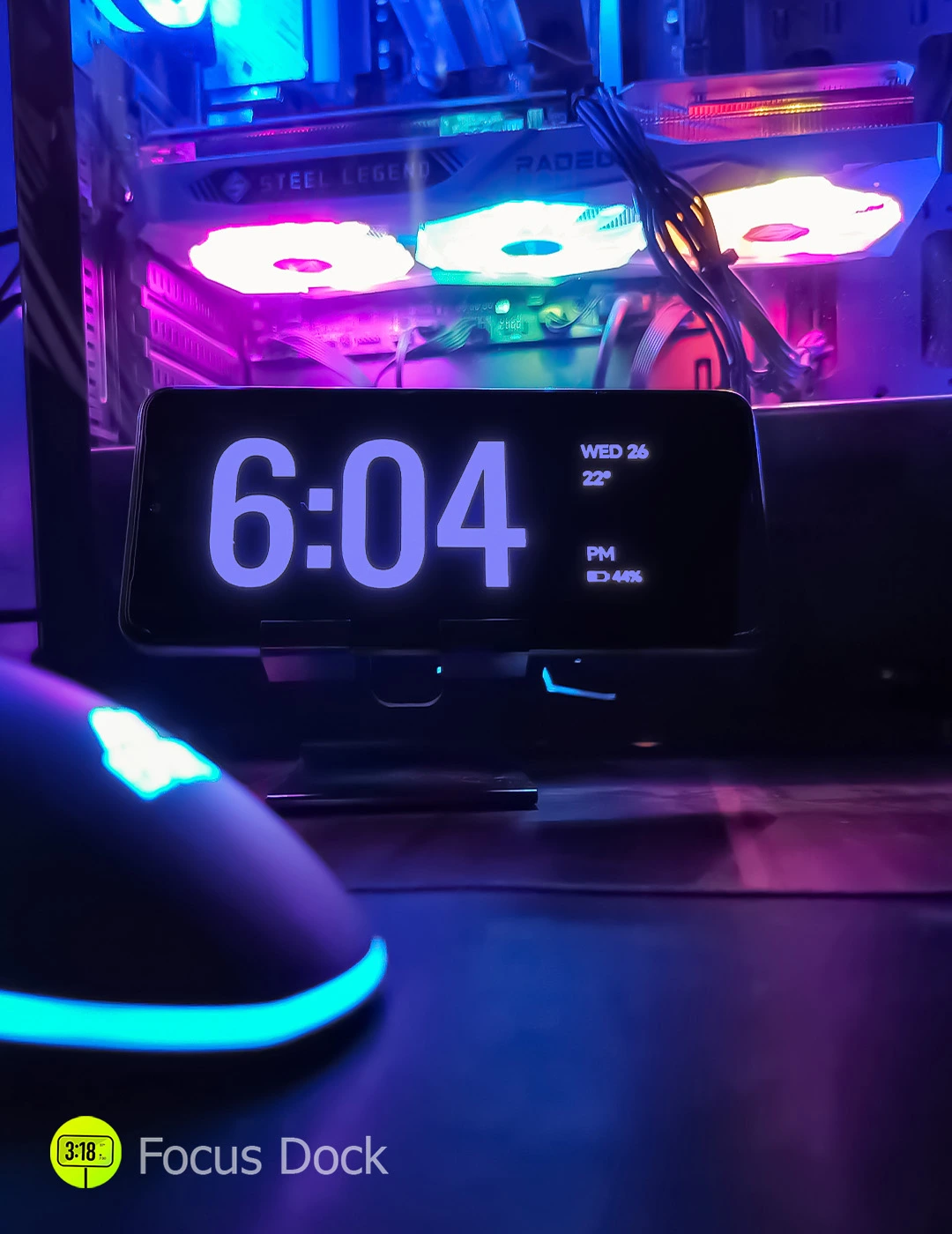
The Top Android Desk Clock Apps in 2026 Compared
| Feature | Focus Dock | Native Android Screensaver | Generic Play Store Clocks |
|---|---|---|---|
| Theme Selection | 43+ Curated Styles | 2 Basic Styles | 5–10 Cluttered Styles |
| OLED Burn-in Protection | Microscopic Chessboard Grid | Basic 2px Shift | None / Rare |
| Auto-Launch on Docking | Yes (Qi & USB-C) | Only while charging | Manual launch |
| Productivity Tools | Pomodoro, Sand Clock, DND | None | Ad-supported timers |
| Live Music Controls | Yes (Spotify, YT Music) | None | Complex Web API only |
| Privacy & Offline | 100% Offline, Zero Tracking | Native OS | Ads & Analytics SDKs |
| Minimum Android OS | Android 7.0 Nougat+ | Varies by OEM | Varies |
1. Focus Dock — The Ultimate Standby & Desk Clock Experience
Focus Dock brings the refined, ambient aesthetic of iOS StandBy mode to Android, enhanced with power-user productivity tools and robust display safety.
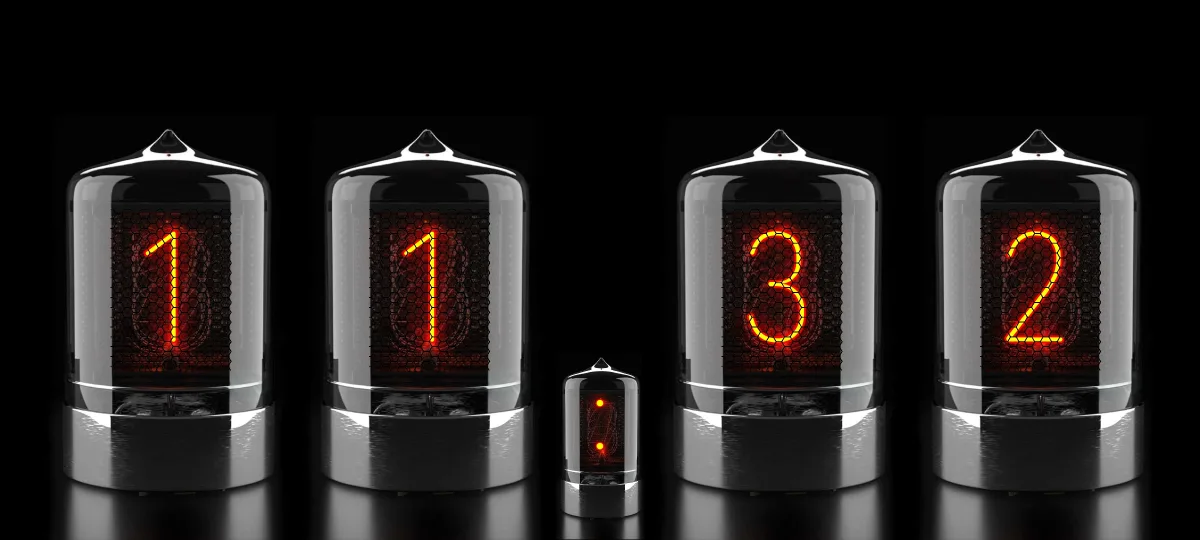
Key Features:
- 43+ Handcrafted Themes: Switch seamlessly between ultra-minimalist typography (Minimal Bold, Minimal Thin), vintage electronics (Nixie Tube Clock, Segment Display, Retro Terminal), functional dashboards (Clock & Calendar, Weather Cards, World Clock), and interactive widgets.
- Hardware-Level Burn-In Protection: Focus Dock implements an alternating microscopic chessboard grid overlay with an opacity slider (0%–100%) that flips sub-pixel duty cycles every minute, preventing diode fatigue.
- Built-in Focus Mode & DND: Automatically turns on Android's Do Not Disturb mode when docked, silencing incoming notifications, group chats, and interruptions during work sprints.
- Dedicated Media Controller: Displays rotating vinyl record artwork, track titles, and transport controls for Spotify, Apple Music, YouTube Music, and local audio players via Android's native
MediaSessionManager. - Bedside Red Night Mode: Drops screen brightness below typical Android limits and shifts pixels to a low-luminance red monochrome spectrum (~650nm) for bedside sleep preservation.
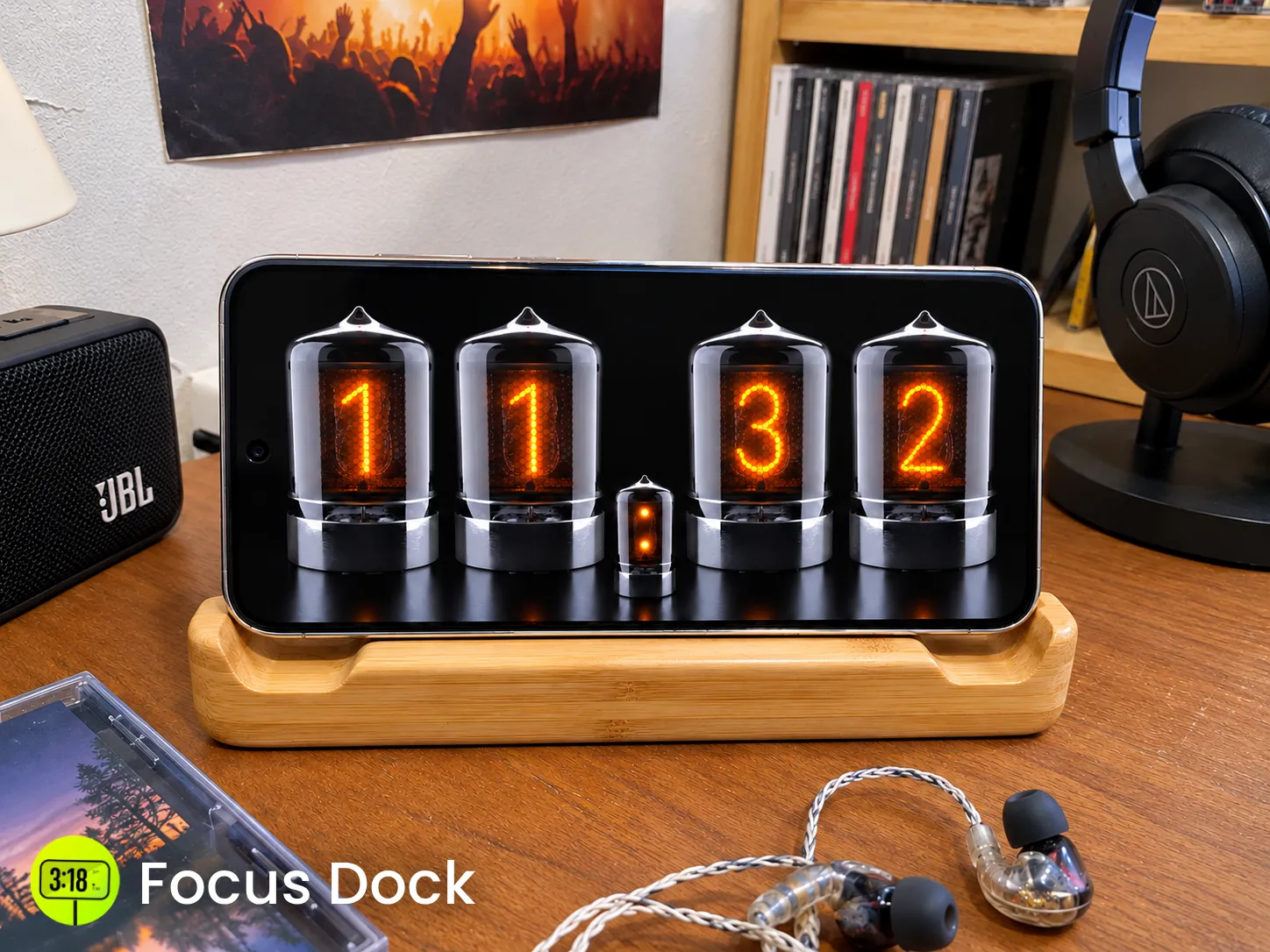
2. Native Android Ambient Screensaver (Clock Daydream)
Every Android device includes a built-in screensaver feature (Settings > Display > Screensaver) that can display a digital or analog clock while charging.
Pros:
- Pre-installed with zero storage footprint.
- Deep integration with Android system settings.
Cons:
- Extremely limited styling (usually just one basic font in white or purple).
- No Pomodoro timers, habit trackers, or audio widgets.
- Does not automatically keep the display awake in custom landscape positions without charging cables.
3. Traditional Digital Alarm Clock Apps
Classic Play Store alarm apps often feature a night clock mode.
Pros:
- Robust multi-alarm configuration and loud waking tones.
Cons:
- Frequently bombarded with full-screen interstitial video ads and banner trackers.
- Rarely optimized for OLED burn-in prevention during prolonged 8-hour workdays.
- Dated user interfaces designed for early Android versions.
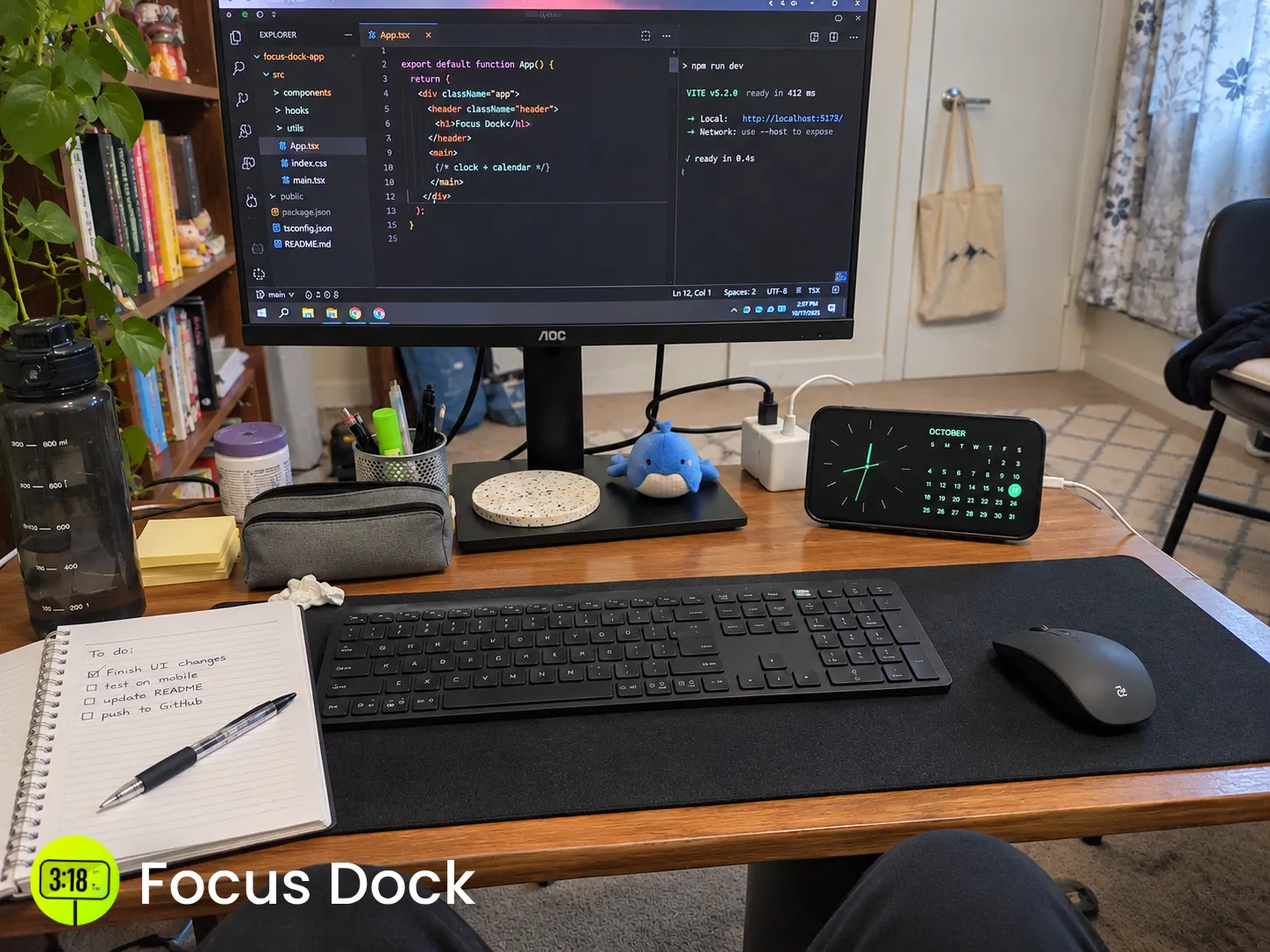
How to Set Up Your Android Phone as an Always-On Desk Clock
Getting started takes less than two minutes:
- Download Focus Dock: Install the app for free from the Google Play Store.
- Choose Your Favorite Theme: Swipe horizontally to browse through 43+ themes. Tap any theme to preview its typography and layout.
- Configure Auto-Launch: Go to Settings > App Auto-Launch and enable automatic launch when connected to power.
- Enable Burn-in Protection: In Screen Settings, toggle on Burn-in Protection and adjust the grid slider to your desired density (30%–50% is virtually invisible from desk distance).
- Dock Your Phone: Place your device horizontally on a charging stand or desktop holder.
Pro Tip for Remote Workers: If you participate in international video conferences, add the World Clock theme to your dock rotation to keep foreign time zones visible at a glance without switching monitor tabs.
Focus Dock is 100% ad-free and respects your battery & display health.