download app
How to Set Up Standby Mode on Android (Step-by-Step Guide)
Focus Dock Team
Focus Dock Core Team · Android Standby Expert
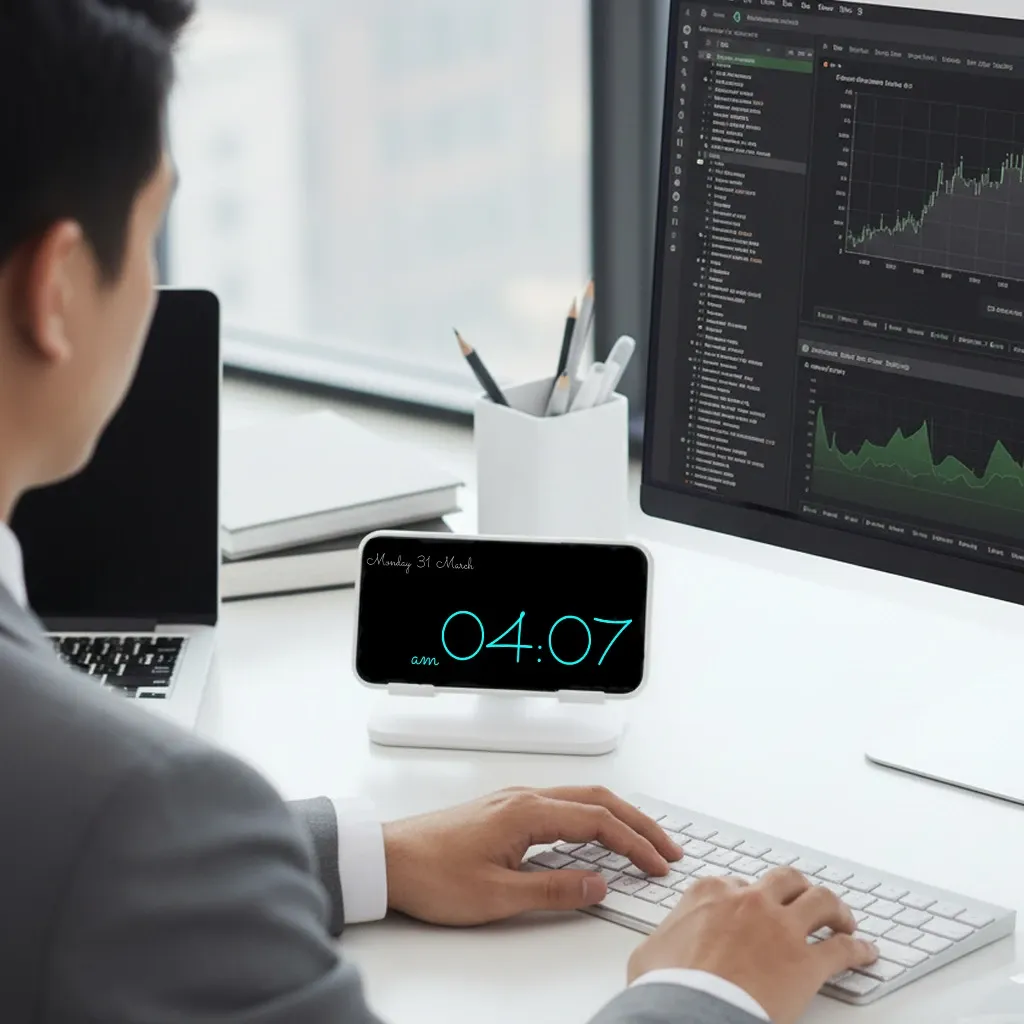
When docked horizontally on a charger, your Android phone has the potential to be so much more than a blank black screen or a generic lock screen. With the right setup, it transforms into an ambient smart desk clock, weather station, and focus companion—showing time, live forecasts, calendar events, and Pomodoro timers at a glance without ever touching the device.
Whether you are docking your daily driver while working at your desk, charging it on your bedside nightstand, or repurposing an older Android phone or tablet into a dedicated smart display, Focus Dock makes setting up ambient standby mode on Android fast, flexible, and completely private.
Here is our comprehensive, step-by-step guide to setting up standby mode on any Android device running Android 6.0 and above.
What You Need to Get Started
Before configuring your standby display, ensure you have the following ready:
- Any Android Device: An Android phone or tablet running Android 6.0 (Marshmallow) or higher. Whether it is a brand new Samsung Galaxy, a Google Pixel, a OnePlus, or an older device from a drawer, Focus Dock is fully compatible.
- A Stable Landscape Stand: A desktop stand or charging dock that holds your phone sideways (landscape orientation). A 60° to 75° viewing angle works best for desk ergonomics.
- A Charger & Cable: Any USB-C / micro-USB cable or Qi wireless charging stand. Focus Dock works with any charging method—no proprietary magnetic rings or specific docks required.
- The Focus Dock App: Free download from the Google Play Store with zero personal data collection and no mandatory accounts.
Step 1: Install and Open Focus Dock
Head to the Google Play Store and install Focus Dock.
Note: Focus Dock requires zero user registration or account creation. The core clock styles, timers, Pomodoro sessions, and todos operate 100% locally on your device. Only real-time weather requires network access to pull local forecasts.
Once installed, tap the app icon to open it for the first time. Complete the quick onboarding to familiarize yourself with the interface.
Step 2: Choose Your Clock Styles and Pages
Focus Dock is designed as a multi-page swipeable dashboard. Rather than locking you into a single rigid look, you can curate your favorite pages based on how you work and relax.
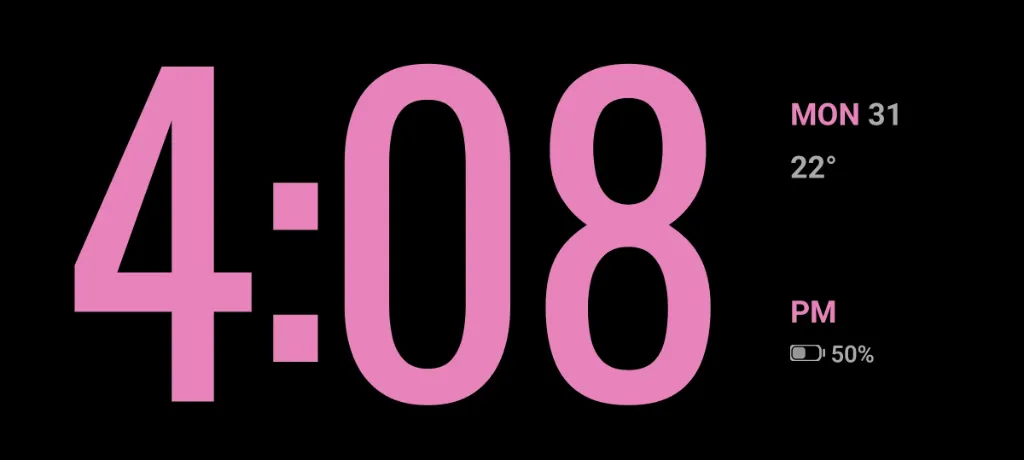
Recommended Display Pages:
- Bold Digital & Fraunces Typography: High-contrast, large-format numerals engineered to be easily legible from across a room or from a desk chair.
- Full Analog Clock: Classic timepiece aesthetic with customizable hands, sub-dials, date windows, and ticker markings.
- Weather + Battery Station: Real-time ambient dashboard displaying current temperature, "feels like" temp, humidity, and battery percentage.
- Pomodoro Study & Focus Timer: Built-in 25-minute focus intervals and customizable rest sessions to keep deep work on track without picking up your phone.
- Minimalist & Segment Clocks: Nostalgic 7-segment LED look or clean line-art clocks for clutter-free aesthetics.
- Calendar & Habit Tracker: Keep your daily schedule, upcoming events, or habit streaks front and center.
Swipe horizontally to preview layouts. Tap and hold or visit the in-app Themes & Pages menu to reorder, add, or customize clock colors and accents to match your desk setup.
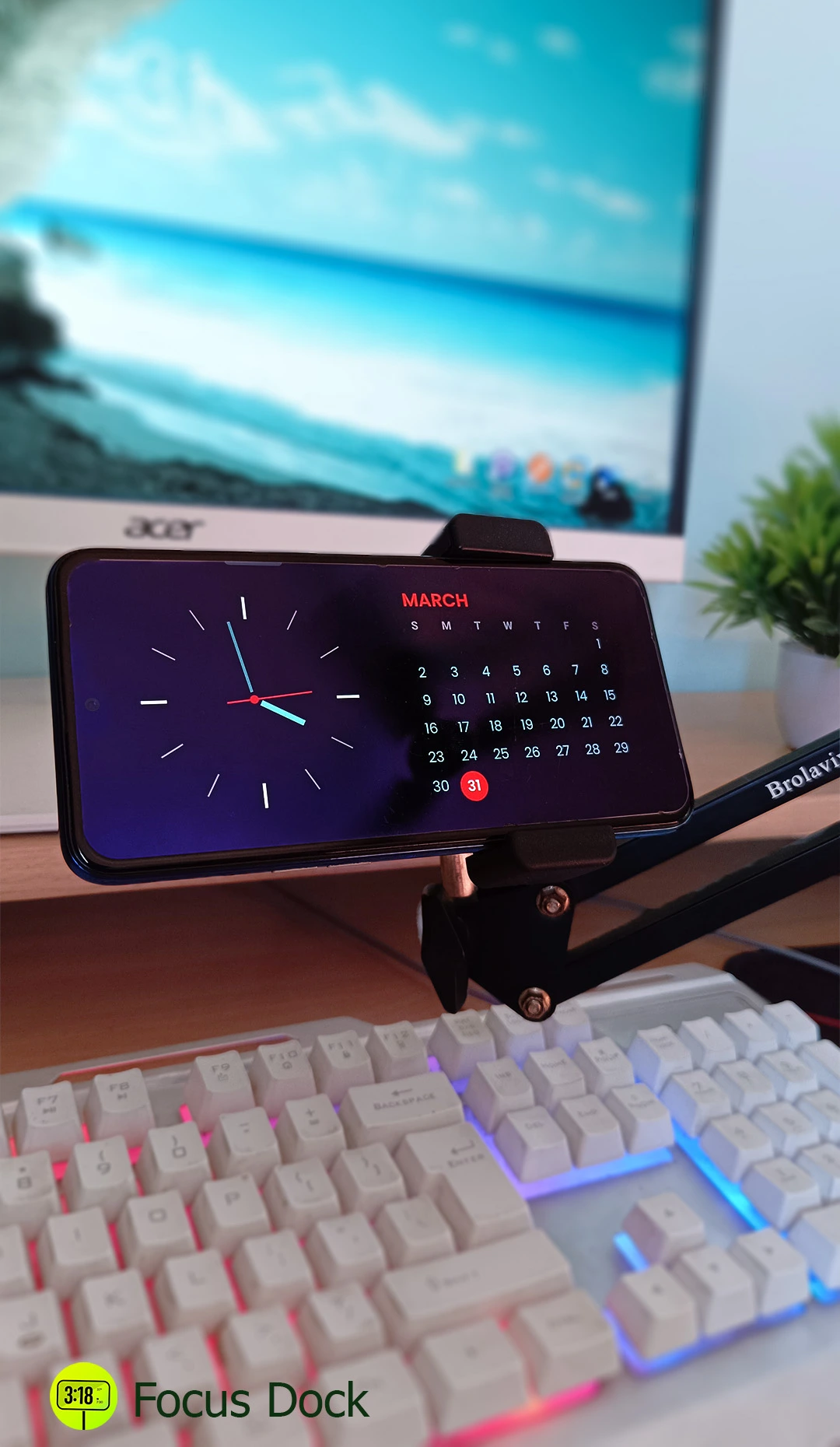
Step 3: Configure Automatic Launch on Charging
The true magic of ambient standby mode is seamless automation: place your phone on the stand, plug it in, and the display automatically awakens without you having to manually launch an app.
How to configure Auto-Launch in Focus Dock:
- Open Focus Dock and tap the Settings gear icon in the corner.
- Select Screen & Dock Settings > Auto-Launch.
- Toggle Auto-Launch on Charging to ON.
- Require Landscape Orientation: Enable this toggle! This ensures the app only launches when your device is placed horizontally on a dock—preventing it from inadvertently opening when you plug in your phone vertically in your pocket or car.
- Auto-Close on Disconnect / Rotation: Toggle this on so your phone automatically returns to your regular launcher or locks when you undock it or turn it upright.
- Optional Operating Schedule: If you only want standby mode during specific hours (such as during working hours 9 AM – 6 PM, or overnight 11 PM – 7 AM), you can define custom active hours.
Step 4: Configure Manufacturer Background Permissions
Android OEMs (Samsung, Xiaomi, Google, OnePlus, etc.) implement aggressive battery-saving background task killers. To ensure Focus Dock reliably wakes your phone when connected to a charger, make sure the required permissions are granted for your specific manufacturer:
Samsung Galaxy (One UI):
- Go to Android Settings > Apps > Focus Dock.
- Tap Battery and select Unrestricted.
- Tap Appear on top (or Draw over other apps) and toggle to Allow.
- In Lock screen settings, ensure notifications are allowed so the phone can display the standby screen.
Google Pixel (Stock Android):
- Go to Settings > Apps > Focus Dock > App battery usage > Choose Unrestricted.
- Go to Settings > Apps > Special app access > Display over other apps and toggle Focus Dock ON.
- On Android 14 and 15, ensure Full-screen intent permission is allowed.
Xiaomi / Redmi / POCO (HyperOS / MIUI):
- Long-press the Focus Dock app icon > App info.
- Enable Autostart.
- Under Battery saver, select No restrictions.
- Under Other permissions, enable Display pop-up windows while running in the background and Show on Lock screen.
OnePlus / Oppo / Realme (OxygenOS / ColorOS):
- Open Settings > Apps > Focus Dock.
- Enable Allow background activity and Allow auto-launch.
- Enable Display over other apps.
Step 5: Protect Your Display (AMOLED Burn-in Protection)
If you plan on using Focus Dock for 6 to 10 hours continuously on your desk or overnight by your bed, protecting your screen from image retention and burn-in is critical—especially on OLED, AMOLED, and Super AMOLED panels.
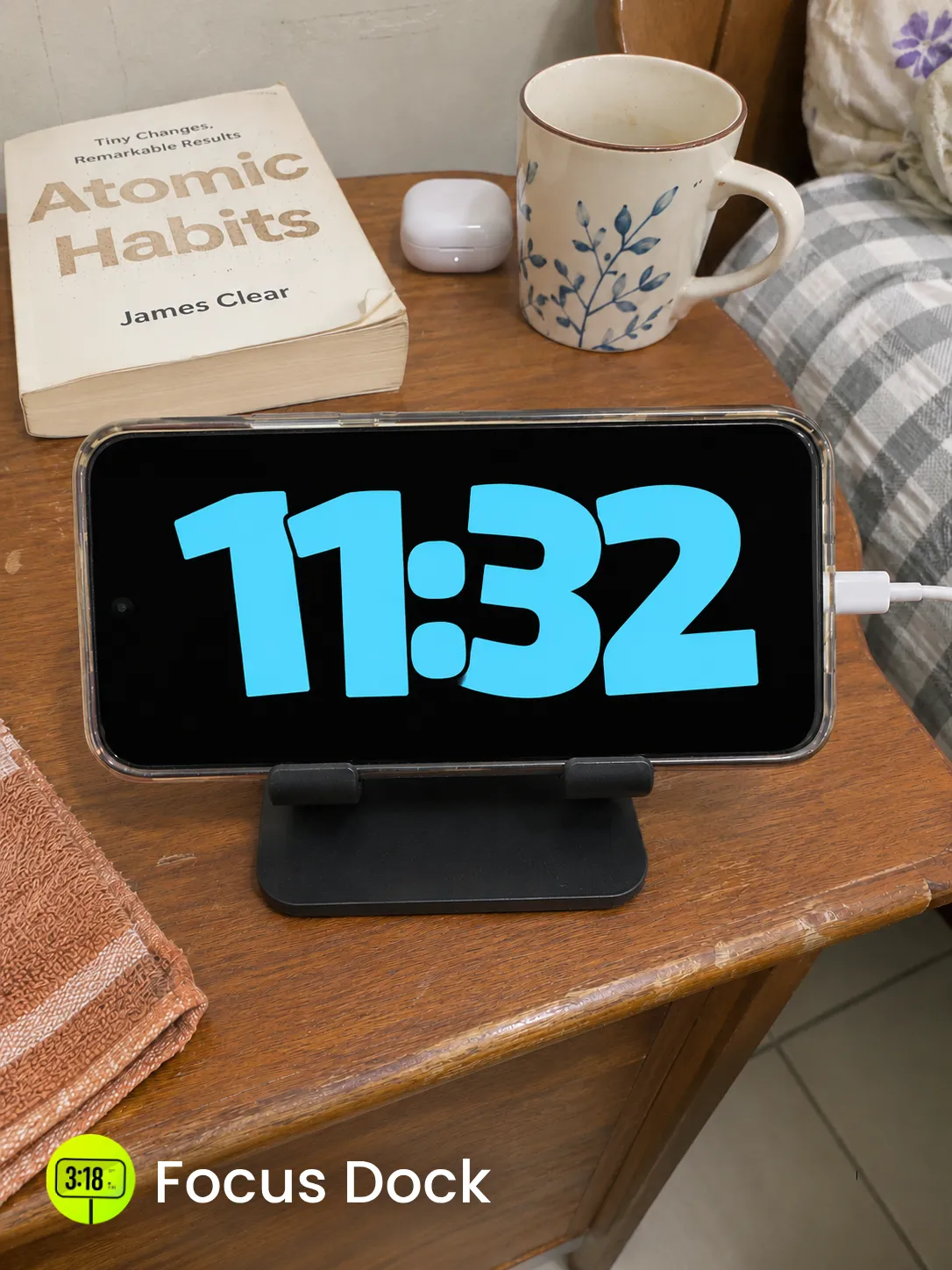
How Focus Dock safeguards your hardware:
- Chessboard Sub-Pixel Inversion: Standard 2-pixel shifting only moves small edges and does nothing for large clock numerals. Focus Dock features an active microscopic chessboard grid that alternates emitter duty cycles minute by minute, preventing continuous thermal stress on any single sub-pixel diode.
- Adjustable Protection Slider: In Focus Dock Settings, you can fine-tune the Burn-in Protection density slider from 0% to 100%. At normal desk viewing distances, it is visually imperceptible while offering complete peace of mind.
- Nightstand Red Tint Mode: When used in a dark room or at night, enable the dim monochrome red tint. Red wavelengths place minimum electrical demand on OLED layers, eliminate blue light sleep disruption, and maintain your night vision.
- True Black AMOLED Pixels: All dark themes use pure
#000000backgrounds, meaning over 85% of your screen pixels are literally powered off, consuming minimal power and generating negligible heat.
Step 6: Test Your Complete Standby Setup
Before settling in, perform this quick 3-step validation to confirm your configuration is solid:
- The Unlocked Landscape Test: Unlock your phone, rotate it to landscape, and plug in the charging cable. Focus Dock should smoothly fade into view.
- The Lock-Screen Test: Lock your phone so the screen turns off. Now place it sideways on your dock and connect the charger. If configured properly with background permissions, Focus Dock should automatically wake the ambient display. (Note: Focus Dock respects your Android lock screen security and does not bypass your PIN/biometric security for private notifications).
- The Undock Test: Disconnect the charger or lift the phone into portrait mode. Focus Dock should automatically close or allow the phone to sleep cleanly.
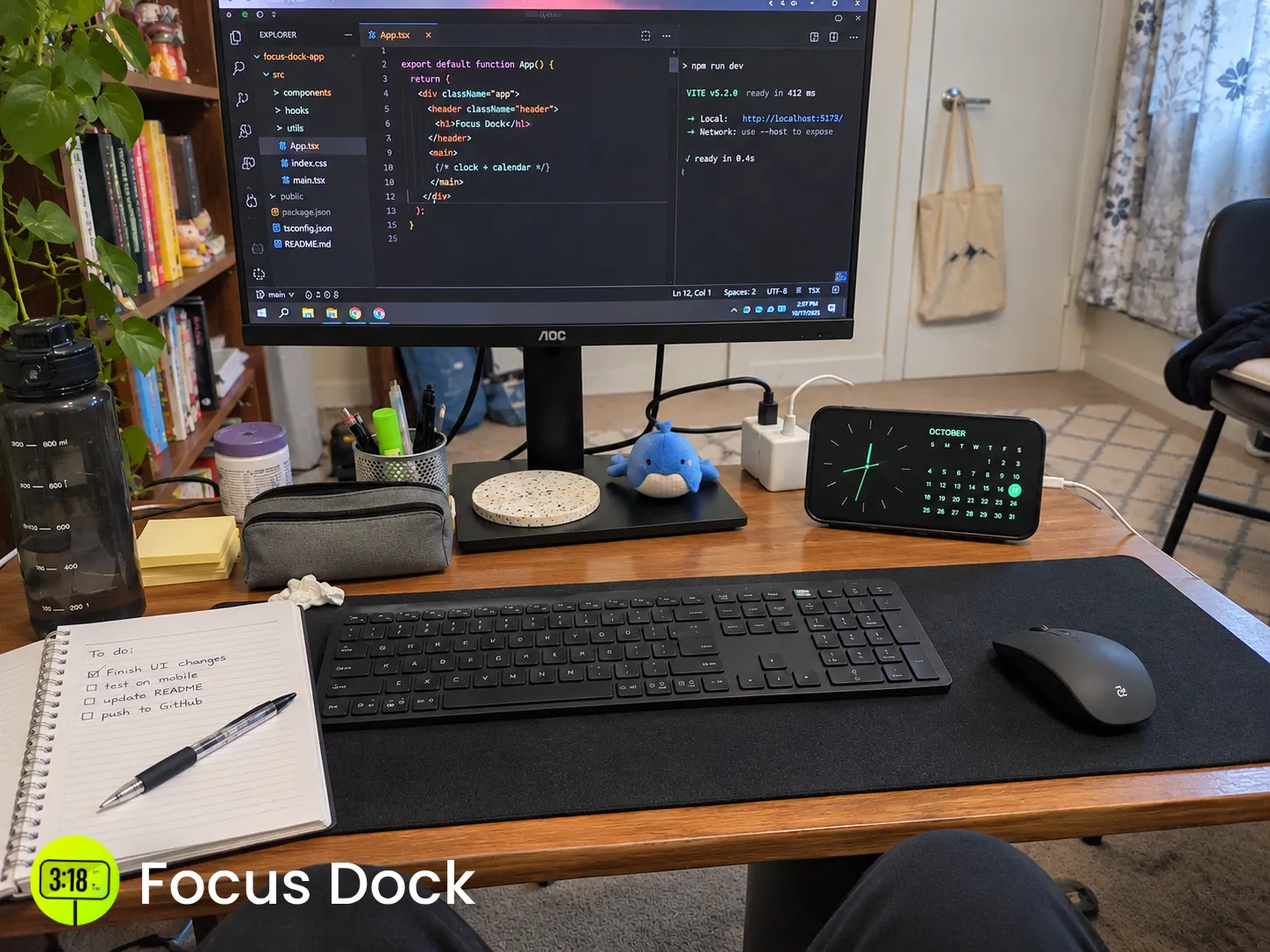
Android Standby Mode vs. Standard Always-On Display
How does a dedicated ambient standby setup differ from your phone builtin AOD (Always-On Display) or other platforms?
| Feature | Android Built-In AOD | Focus Dock Standby | iPhone StandBy |
|---|---|---|---|
| Landscape Optimization | Usually portrait only | Full landscape layout | Landscape only |
| Charger Compatibility | Cable or Wireless | Any cable, dock or wireless | MagSafe / Qi only |
| Clock Varieties | 2–4 basic styles | 15+ rich styles (Analog, Bold, Earth, Sand, Nixie) | 5 basic styles |
| Focus / Pomodoro Timers | No | Built-in Pomodoro sessions | No |
| Detailed Weather & AQI | Basic temp icon | Multi-hour forecast, AQI, humidity, sunrise | Basic weather |
| Burn-In Pixel Protection | Basic 2px shift | Hardware-level chessboard pixel shift | Basic shift |
| Habits & Tasks | No | Interactive checklists & grids | No |
| Privacy & Tracking | OEM telemetry | 100% private, zero telemetry | Apple account |
Quick Troubleshooting Checklist
- App doesn’t launch when connecting charger?
Verify that Auto-Launch is enabled in Focus Dock Settings, that your phone is tilted at least slightly in landscape (if Require Landscape is enabled), and that battery optimization is set to Unrestricted.
- Screen turns off after a few minutes?
Inside Focus Dock Settings > Screen, verify that Keep Screen Awake While Docked is switched ON.
- Weather displays "Unavailable" or wrong city?
Ensure location permission is granted for Focus Dock in Android Settings > Apps > Focus Dock > Permissions. Once granted, tap the weather widget to refresh.
- Can I use an old Android phone permanently?
Yes! Old phones running Android 6.0+ make magnificent dedicated desk companions. Set brightness to 30–40%, enable burn-in protection, and leave it permanently docked.
Elevate Your Desk and Nightstand
Your Android device is powerful enough to be your desk clock, productivity station, and nightstand companion. With Focus Dock, setting up standby mode takes less than two minutes.
Ready to transform your charging setup? Download Focus Dock on Google Play and explore our Theme Gallery to discover more layouts and desk inspiration.
Focus Dock is 100% ad-free and respects your battery & display health.