download app
OLED Screen Burn-In on Always-On Desk Clocks: The Science, Myths & Prevention
Focus Dock Engineering
Focus Dock Core Team · Android Standby Expert
Whenever users consider turning an Android smartphone or tablet into a full-time desk clock, the first concern raised is almost always: "Will this ruin my screen with OLED burn-in?"
It is a valid fear. Modern OLED, AMOLED, and Super AMOLED displays produce stunning contrast and deep inky blacks, but they are built on organic light-emitting diodes that physically degrade over time.
In this technical deep dive, we examine the physics of display burn-in, explain why traditional "pixel shifting" algorithms fail on large clock typography, and reveal how Focus Dock's hardware-level chessboard grid solves the problem permanently.
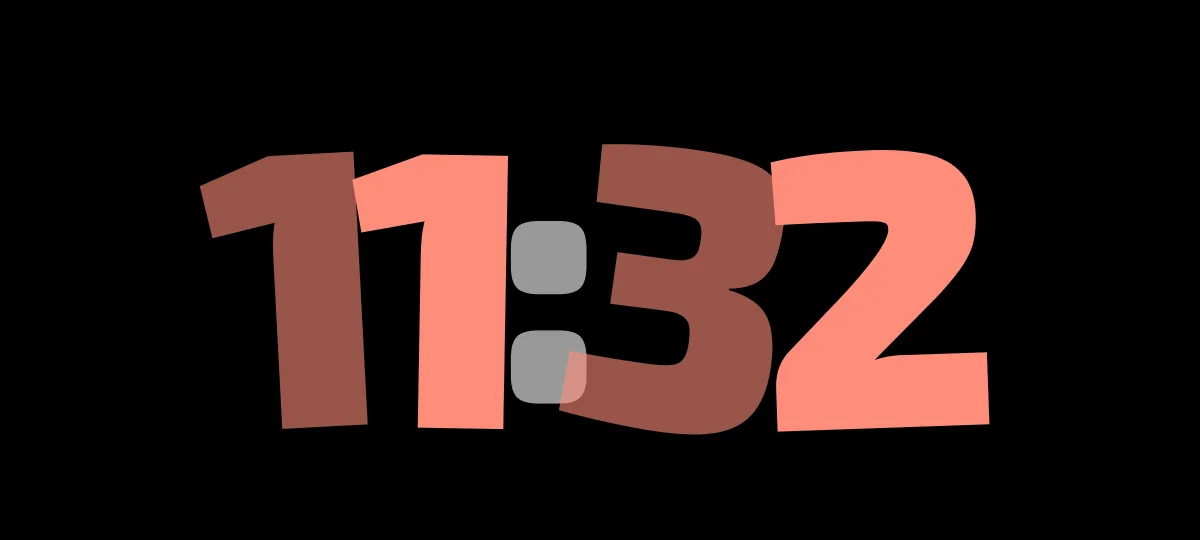
The Physics of OLED Display Burn-In
Unlike LCD displays (which use a single continuous LED backlight shining through liquid crystals), every single pixel in an OLED display is an independent microscopic light bulb.
When a pixel displays pure black (#000000), its current is completely shut off — drawing 0.00 Watts of power. However, when displaying bright white or colored text, electrical current flows through organic emitter compounds.
The Problem of Uneven Aging:
- Differential Sub-Pixel Degradation: In standard RGB and Diamond PenTile OLED matrices, blue sub-pixels have lower luminous efficiency and degrade faster than red and green emitters.
- Static Luminance Stress: If a clock digit displays "12" in the exact same spot at 100% brightness for 8 hours a day, those specific pixels emit photons while surrounding black pixels remain off.
- The "Ghost" Image: Burn-in is not ink stuck on glass; it is differential pixel aging. The heavily used pixels become slightly dimmer than their unused neighbors, leaving a permanent faint shadow when viewing solid colors.
Why Standard 2-Pixel Shifting Fails for Desk Clocks
Many mobile operating systems feature built-in "pixel shift" for their tiny status bar icons. Every few minutes, icons shift by 1 or 2 pixels in random directions.
While 2-pixel shifting works adequately for a 1-pixel-wide Wi-Fi icon, it is mathematically useless for large desk clock digits:
- A typical desk clock number is between 120 and 300 pixels wide.
- Shifting a 200-pixel-wide bold numeral by 2 pixels leaves 196 pixels completely static and under continuous electrical stress.
- Only the outer 2-pixel perimeter receives relief; the massive core of the number burns in just as fast as if it never moved at all.
Focus Dock's Solution: Mathematical Chessboard Grid Inversion
To solve display burn-in for continuous multi-hour docking, Focus Dock engineers developed an active chessboard pixel grid overlay:
1. Alternating Sub-Pixel Polarity
Instead of merely translating element positions, Focus Dock overlays an ultra-fine microscopic chessboard grid over the rendering pipeline.
- At Minute 0, the even pixels emit light while the odd pixels rest.
- At Minute 1, the grid inverts: the odd pixels illuminate while the even pixels rest.
- This alternates the duty cycle across sub-pixels, preventing any individual diode from suffering continuous thermal or electrical saturation.
2. User-Controlled Density Slider
Inside Focus Dock's Screen Settings, users can adjust the burn-in grid overlay opacity from 0% to 100% using a smooth hardware slider. Even at high protection levels, the high pixel density (400+ PPI) of modern Android displays renders the grid virtually invisible from a standard desk viewing distance of 2 feet.
3. Bedside Red Night Mode Physics
For nightstand use, Focus Dock incorporates a specialized Red Night Mode inspired by cockpit avionics. Red light wavelengths (~650nm) place the lowest electrical demand on OLED organic layers while completely sparing blue sub-pixels from degradation and preserving human night vision.
5 Practical Rules for Safe Desk Clock Docking
- Enable Burn-In Protection: Always turn on Focus Dock's grid protection in Settings for docks used longer than 2 consecutive hours.
- Keep Brightness Reasonable: Screen degradation scales exponentially with brightness. A 30%–50% brightness level provides crystal-clear desk legibility without overheating.
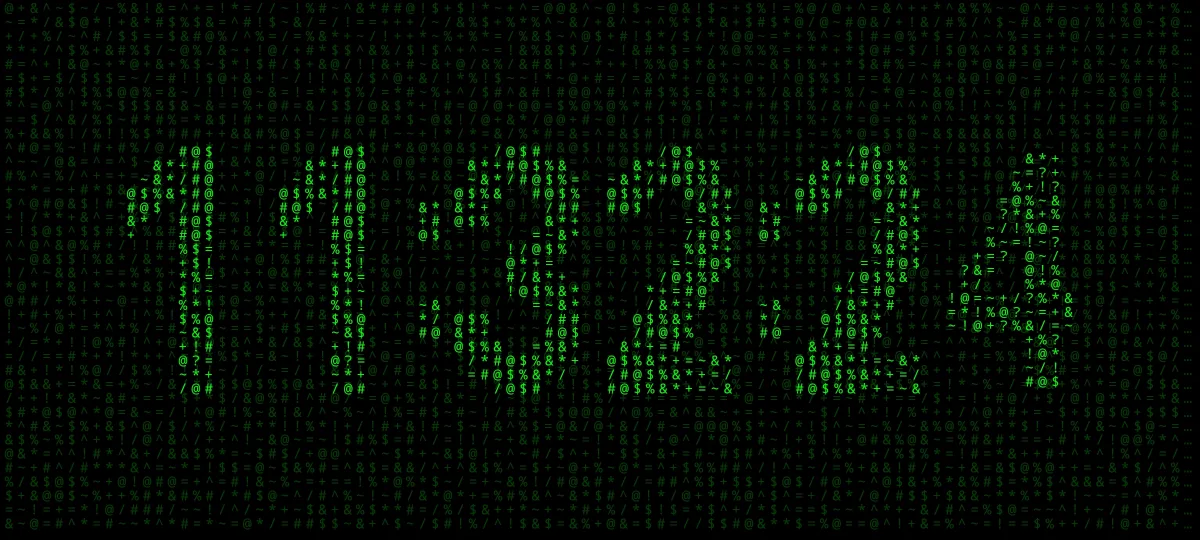
- Use AMOLED Dark Themes: Choose themes with pure black backgrounds (such as Minimal Bold, Segment Clock, or Terminal) to ensure 80%+ of your screen draws zero current.
- Leverage Auto-Sleep on Disconnect: Let Focus Dock automatically sleep the moment you unplug your phone.
- Enable Bedside Mode at Night: Use ultra-low dimming and red monochromatic tints when sleeping.
Focus Dock is 100% ad-free and respects your battery & display health.