download app
The Complete Guide to Android StandBy Mode: Auto-Launch, Qi Charging & 43+ Themes (2026)
Focus Dock Team
Focus Dock Core Team · Android Standby Expert
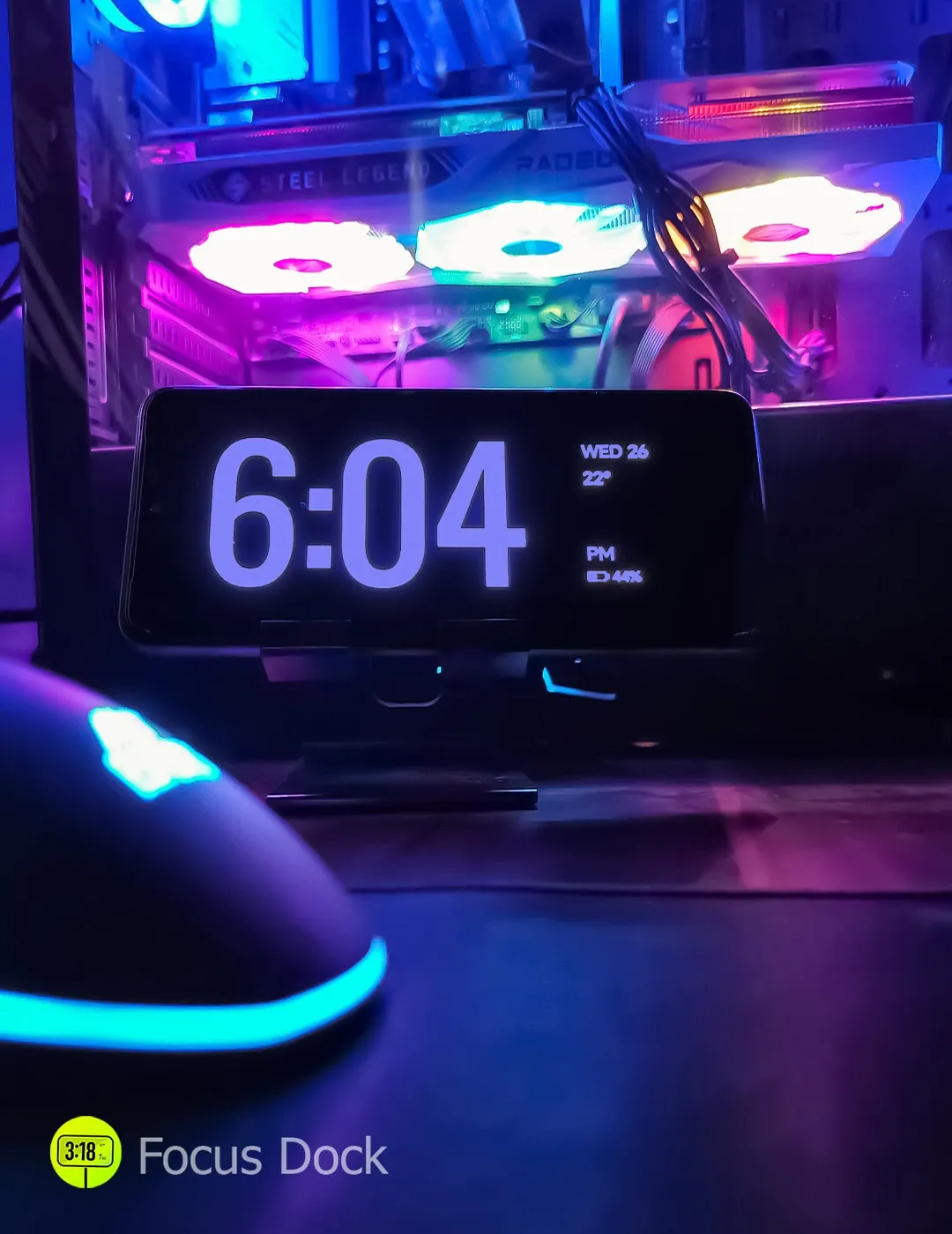
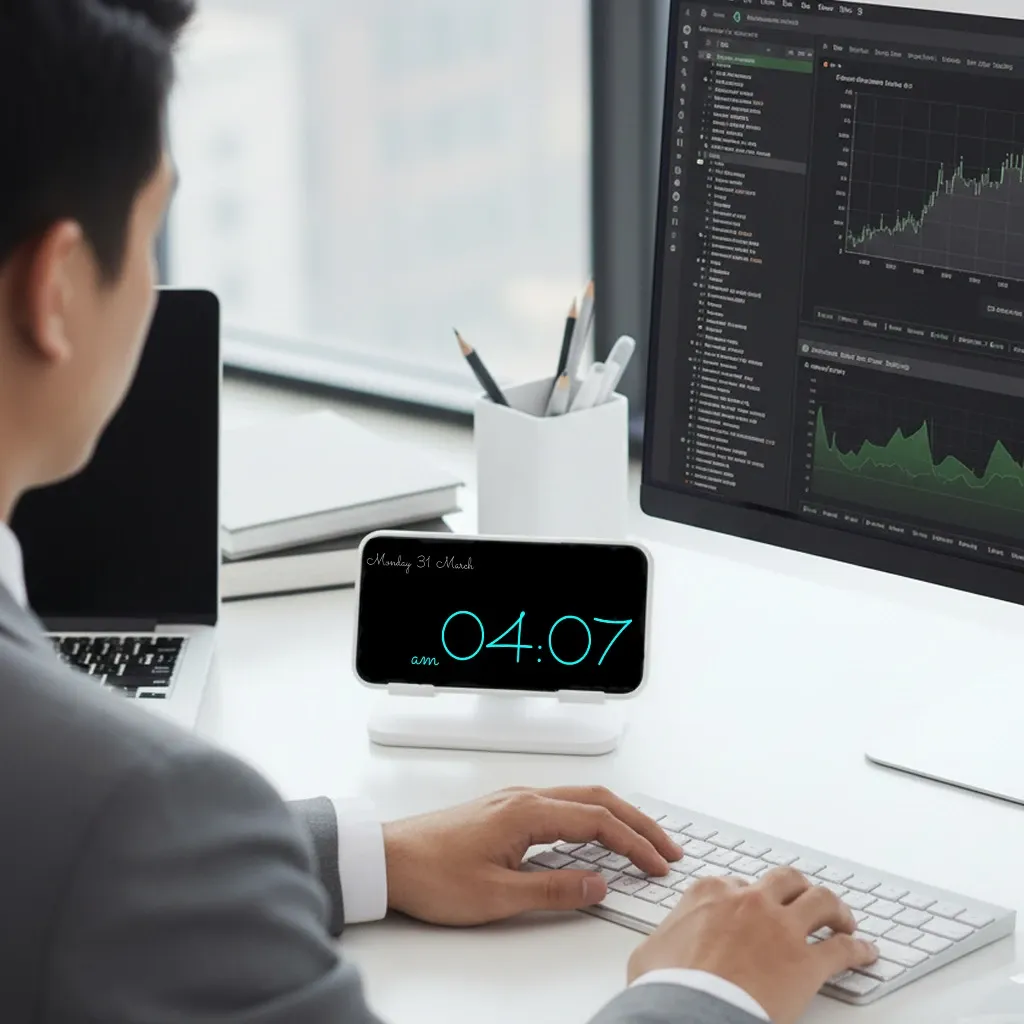
When Apple introduced StandBy mode in iOS 17, it popularized turning a docked phone into an intelligent, hands-free ambient display. However, Android users do not need an iPhone or a proprietary Apple MagSafe charger to enjoy the exact same — and in many ways, far superior — landscape smart clock experience.
With Focus Dock, any phone running Android 8.0 Oreo through Android 15 can automatically transform into a high-visibility desk clock, Pomodoro productivity timer, weather station, or live music dashboard the second you connect power.
What Is Android StandBy Mode?
In essence, StandBy mode transforms idle charging time into productive glanceable information. Instead of your phone screen going black or showing an erratic screensaver, a standby display delivers:
- Always-On Visibility: High-contrast, ambient typography readable from across the room without tapping the screen.
- Hands-Free Auto-Launch: Instant wake-up when placed on a wireless charging stand or USB-C dock.
- Duo Widget Split Screens: Clocks side-by-side with monthly calendars, Google Calendar events, weather forecasts, or habit trackers.
- True Lockscreen Security: Standby widgets render cleanly over the lockscreen using native Android window flags, so your private messages, apps, and banking info remain securely protected.
How Auto-Launch Works Under the Hood
Unlike third-party clock apps that require you to unlock your phone, open an app drawer, and manually start a timer every single time you sit at your desk, Focus Dock operates completely hands-free via its background StandbyDetectorService.
The Native Hardware Triggers:
- Power Connection Detection: Detects USB-C cable insertion or Qi / MagSafe magnetic wireless charging coil alignment.
- Accelerometer & Gyroscope Sensor Filtering: Ensures your phone is docked horizontally (landscape orientation) before waking.
- Over-The-Lockscreen Windowing: Leverages Android's native
setShowWhenLocked(true)andFLAG_KEEP_SCREEN_ONAPIs to illuminate the screen without asking for your fingerprint or PIN. - Auto-Sleep on Disconnect: The moment you pick up your phone or disconnect the charger, a native broadcast receiver instantly clears the wake flags and sends the app behind the lockscreen via
moveTaskToBack(true), preserving your battery.
Top 5 Recommended StandBy Setups for Android
Focus Dock includes over 43 curated visual themes. Here are the most popular setups based on how and where you work:
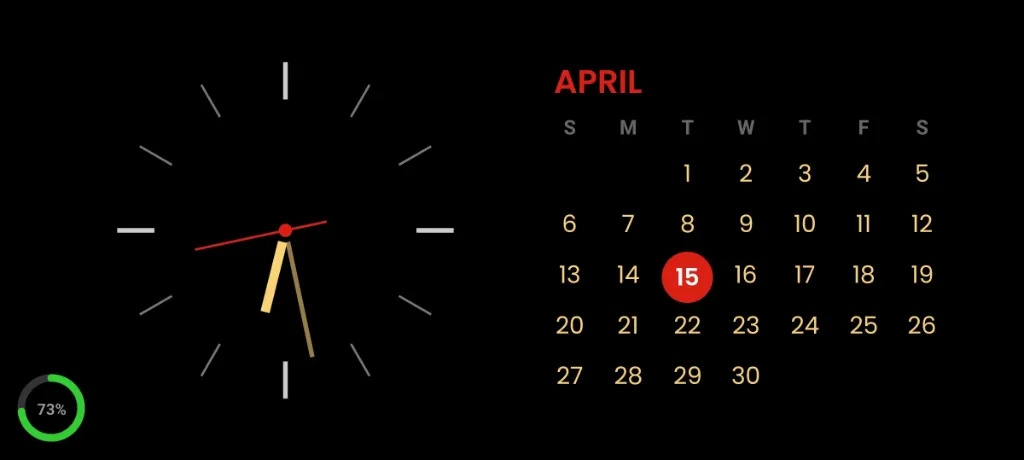
1. The Executive Duo: Analog Clock + Google Calendar
Perfect for workspace desks. On the left, an elegant Bauhaus analog clock keeps time in your direct line of sight. On the right, your native device calendar shows today's upcoming meetings, class schedules, and deadlines.
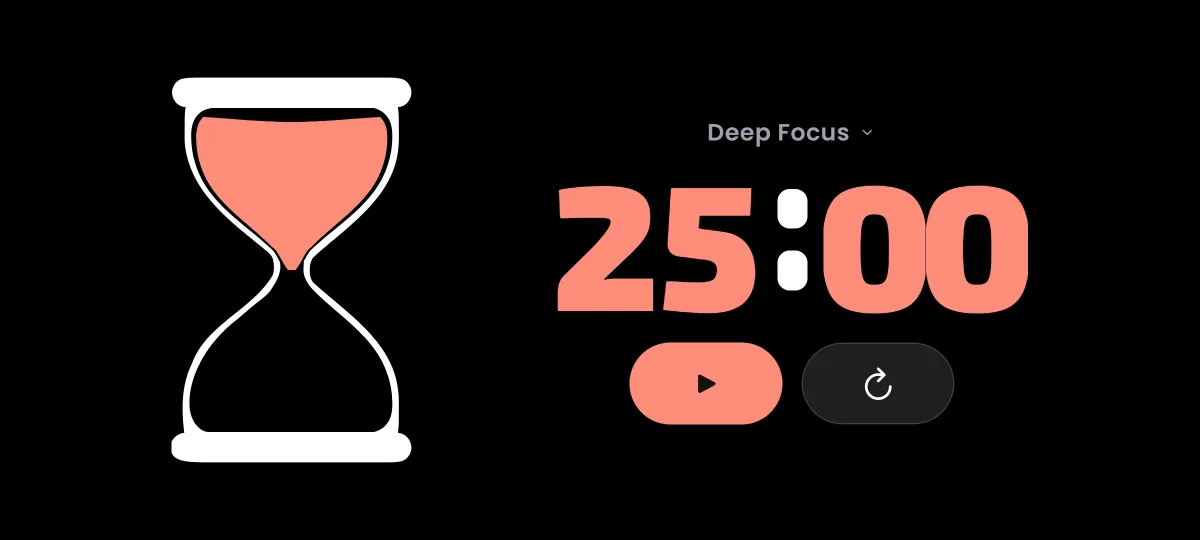
2. The Focus Flow: Sand Clock + Pomodoro Timer
Designed for deep study and coding sessions. Choose standard 25/5 intervals or customize your work blocks (e.g., 50/10). The digital sand clock visualizer provides a calming, anxiety-free sense of time passing.
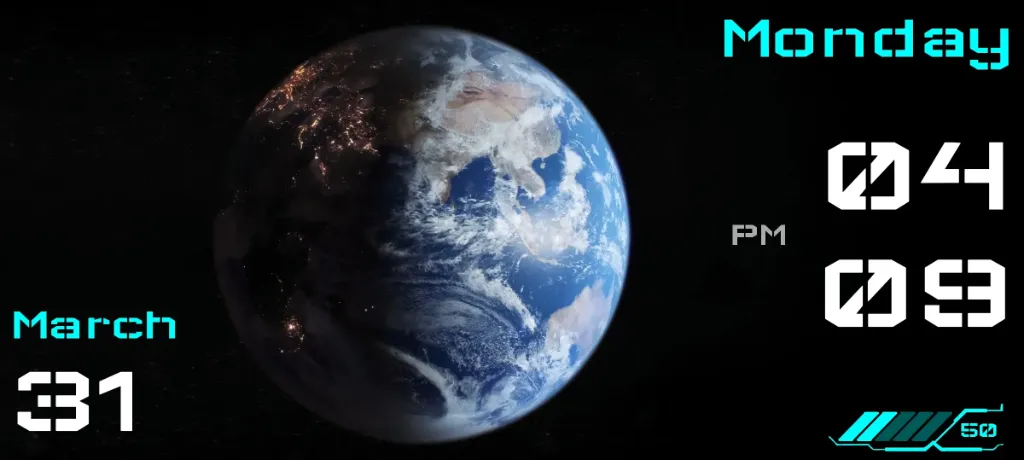
3. The Visual Showstopper: 3D Earth Clock
Features a detailed rotating 3D Earth rendered in real time with the actual solar terminator line. As the sun rises and sets across continents, your desk display mirrors the real planet's day/night boundary.
4. The Vintage Enthusiast: Soviet Nixie Tubes & 7-Segment Flip
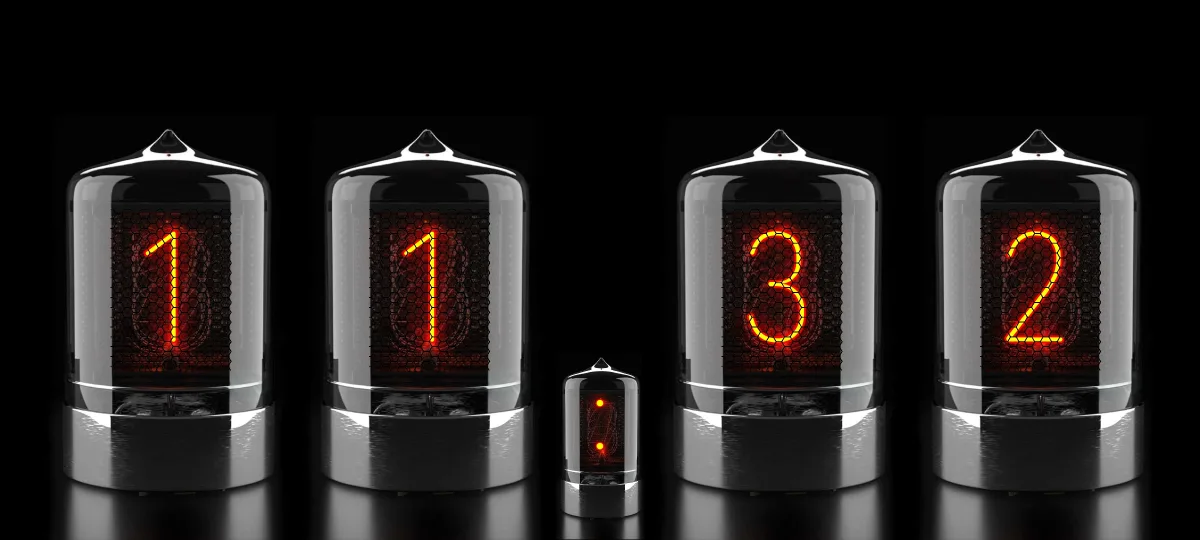
For retro mechanical keyboard and warm wood desk setups. The glowing orange neon filaments of the Nixie tube clock and mechanical flip digits offer timeless desk aesthetics without high eBay hardware prices.
5. Bedside Nightstand: Red Night Mode
When placed on your bedroom nightstand, white and blue screen light disrupts melatonin production. Focus Dock's Bedside Mode drops brightness below default Android slider limits and shifts color spectrum to monochromatic red/amber night vision.
How to Set Up Android StandBy Mode in 3 Minutes
Setting up Focus Dock takes less than three minutes and requires zero complex root or ADB permissions:
- Install Focus Dock: Download the free app from the Google Play Store.
- Enable Auto-Launch: Open Settings inside Focus Dock and toggle on "Auto-Launch on Charging". Grant the notification/service permission when prompted.
- Select Your Themes: Swipe horizontally to arrange your favorite standby pages (e.g., Duo Clock, Spotify Music Player, Weather Cards).
- Dock and Go: Place your phone horizontally on your charging dock. The display activates instantly.
Pro Tip for AMOLED Displays: Enable "Advanced Burn-in Protection" in Focus Dock settings. The active chessboard pixel inversion ensures that static clock digits never cause uneven OLED sub-pixel wear, even during 12-hour continuous docking sessions.
Focus Dock is 100% ad-free and respects your battery & display health.