download app
Android Dock Mode Explained: What It Is and How to Use It
Focus Dock Team
Focus Dock Core Team · Android Standby Expert
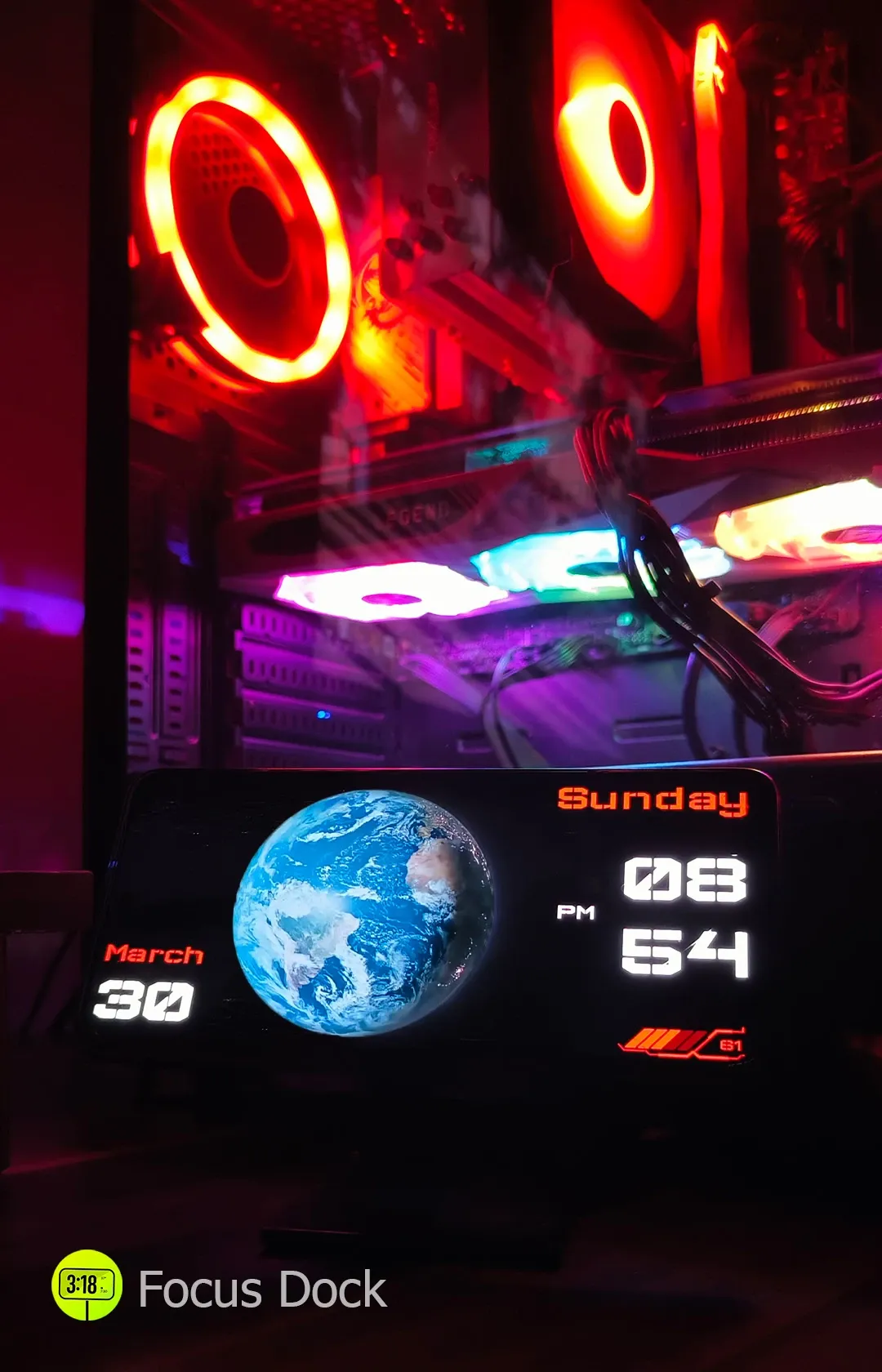
If you've ever plugged your Android phone into a desk dock and noticed a different screen mode activate — that's Android's dock mode. Here's what it actually is, how it works, and how to get the most out of it with Focus Dock.
What is Android Dock Mode?
Android dock mode (sometimes called desk mode or car mode) is a display state that Android can enter when the phone is placed in a physical charging dock. Originally designed for car docks and desk docks, it triggers a simplified full-screen interface optimised for use while the phone is stationary and charging.
Traditional dock mode in Android was hardware-triggered — placing the phone in a dock with specific magnetic pins or connectors told Android to switch modes. Modern smartphones have largely moved away from physical docks, but the concept is still highly relevant.
Dock Mode in Modern Android
Today's Android dock mode is more of a software concept:
- DeX on Samsung — Samsung's desktop mode turns compatible Galaxy phones into a mini desktop when connected to a monitor or DeX dock
- Connected display on Pixel — Google added a desk clock / ambient display mode for Pixels on a stand
- Third-party apps like Focus Dock — provide a full standby display mode that works with any charger or stand, without needing special hardware
How Focus Dock Replaces Hardware Dock Mode
Focus Dock effectively creates a software dock mode for any Android phone. Instead of needing a special dock, it uses:
- Charging detection — activates when you plug in any charger
- Orientation detection — optionally activates when the phone is in landscape
- Scheduled activation — activates during certain time windows
- Manual launch — open it whenever you want your phone in standby mode
Once activated, your phone's screen becomes a dedicated information display — clocks, weather, Pomodoro timer, music controls, todos and more. It's what Android dock mode should look like in 2026.
What Focus Dock Shows in Dock Mode
When Focus Dock is running as your Android dock mode display, you can have:
- Clock pages — digital, analog, segment, world clock, photo clock
- Weather pages — current conditions, forecasts, AQI, moon phases, sunrise/sunset
- Focus timer pages — Pomodoro countdown, full-screen timer, stopwatch
- Todo and habit pages — keep your task list visible
- Music control page — see and control what's playing without unlocking
Swipe between pages to switch views, just like swiping between widgets.
Setting Up Dock Mode with Focus Dock
- Install Focus Dock (free on Play Store)
- Choose your display pages in the app
- Go to Settings > Auto-Launch > enable charging or landscape trigger
- Follow the permission guide for your phone manufacturer
- Place phone on a stand, plug in — dock mode activates automatically
Which Android Phones Support the Best Dock Mode Experience?
Focus Dock works on Android 6.0+ across all manufacturers. The best experience comes from:
- Samsung Galaxy — AMOLED displays, good background app support
- Google Pixel — clean Android, excellent always-on capabilities
- OnePlus — fast and smooth with great OLED screens
- Xiaomi / POCO — wide range, good AMOLED options
The key permission to grant is background auto-launch — Focus Dock provides manufacturer-specific guidance for each phone brand.
If you're looking to make your Android phone a useful display while it sits charging on your desk or bedside, Focus Dock is the simplest and most feature-rich way to do it.
Focus Dock is 100% ad-free and respects your battery & display health.